How do I enable 2FA?
It is strongly recommended to enable 2FA before submission, and to make sure you keep the 2FA / TOTP secret instead of only a temporary one-time code.
Why this matters
The service usually needs reusable 2FA / TOTP information during execution. If you only saved a code generated for one specific moment, the task can still fail later.
Recommended setup
- Open the Google
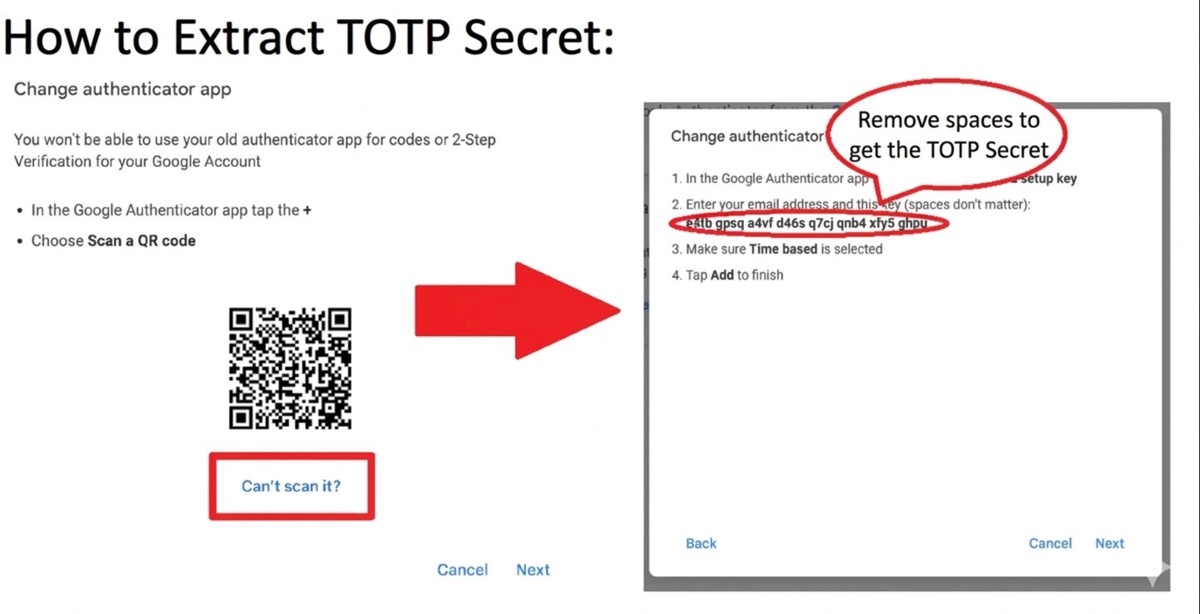
Authenticatorsetup page: https://myaccount.google.com/two-step-verification/authenticator - Click
Set up authenticator. - Click
Can't scan it?, then copy and keep the2FA / TOTP secretbecause you will need it later!!! - Open 2FA verifier.
- Paste the saved secret into the verifier, generate a code, go back to the Google authenticator page, click
Next, and enter the code to complete verification.
Check again before submitting
- You kept the long-term secret, and this exact secret is also what you submit.
- It is not just a temporary six-digit code.
- Your backup or recovery method is also saved.
If you are not sure whether you have the real secret or just a current code, verify first before submitting.
Official help: